
Q: How do I know if I am using the latest version of the TextBetter mobile app?
To confirm whether you are using the latest version of the TextBetter mobile app, first log in to the app on your phone:
- Tap the Account icon in the bottom-right corner.
- Scroll down to the App Info section to view your current app version.
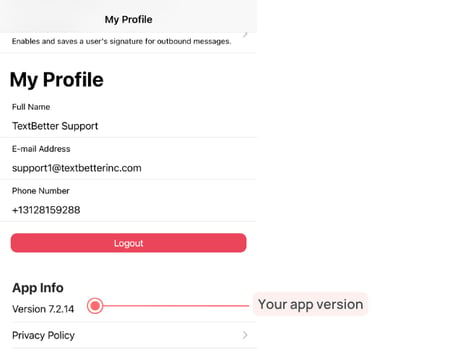
If you are unsure whether your version is the latest available, you will need to contact TextBetter support at support@textbetterinc.com and include:
- The version currently shown in the app
- Your mobile device type/model and operating system version
Q: I don’t see the latest mobile app on my phone yet. What should I do?
-
Try fully closing app. Wait 1 minute, then re-open the app. This will allow the background update to complete.
-
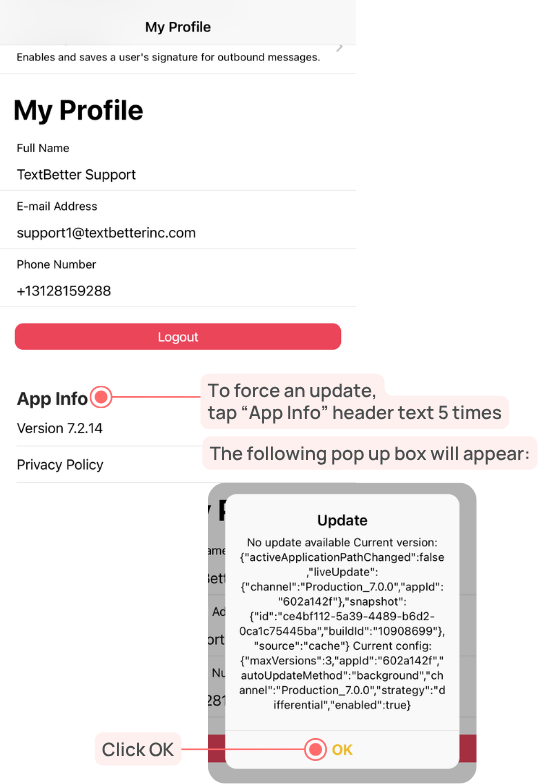
You can also force the update manually.
-
From the mobile app, tap the Account icon in the bottom-right corner.
-
Scroll to the App Info section.
-
Tap the App Info section header five times.
-
A pop-up window will appear (as shown below).
-
Click OK.
-
Still not seeing the latest version?
Contact Support@textbetterinc.com or call (800) 322-1112