
Overview
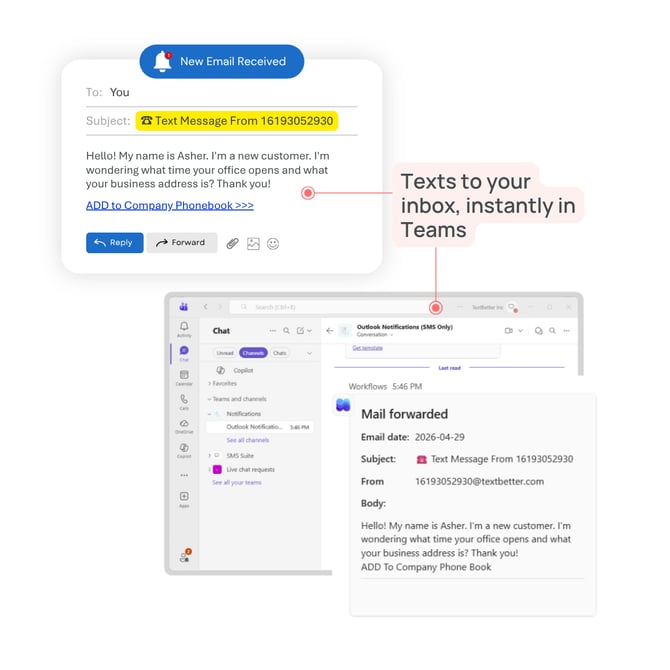
This setup allows your team to receive inbound text messages (sent to your text-enabled number) directly inside a Microsoft Teams channel.
Here's how it works:
- A customer sends a text message to your business number
- The message is delivered to your email inbox (via Email to Text)
- After it arrives to your inbox, it is automatically posted into a Teams channel via a Microsoft Office Workflow tool.
What is the Workflows app in Microsoft Teams?
The Workflows app is a Microsoft-built automation tool that allows you to connect actions across apps like Teams and Outlook.
It’s developed by Microsoft Corporation and is designed to:
- Automate repetitive tasks
- Route messages between systems
- Trigger actions based on events (like receiving an email)
In this case, it’s used to automatically post inbound text messages (received via email) into a Teams channel.
How do I set this up?
- In Microsoft Teams, go to Apps
- Search for and install the Workflows app, link here.

- Open the app and select the template: “Forward emails in a folder to a channel”

- Connect your Microsoft 365 email account, and select the Team and Channel where messages should be posted
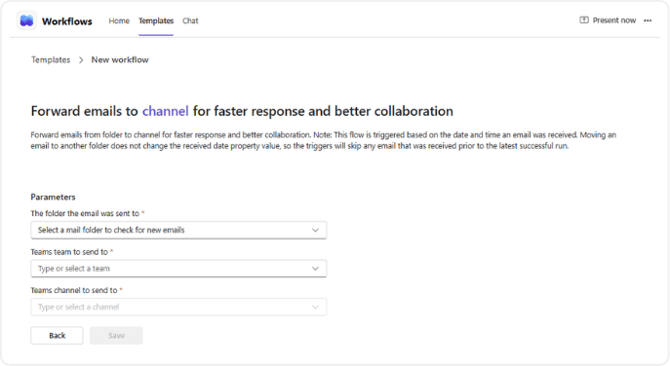
- Click Save.
- Directly after saving, you’ll need to update the workflow to ensure only text messages are posted to Teams:
-
- Go to Manage Workflows (from the Workflows app)
- Select the workflow you just created
- In the trigger section (“When a new email arrives”), click Show advanced options
- In the Subject Filter field, enter:
☎ Text Message From - Click Save
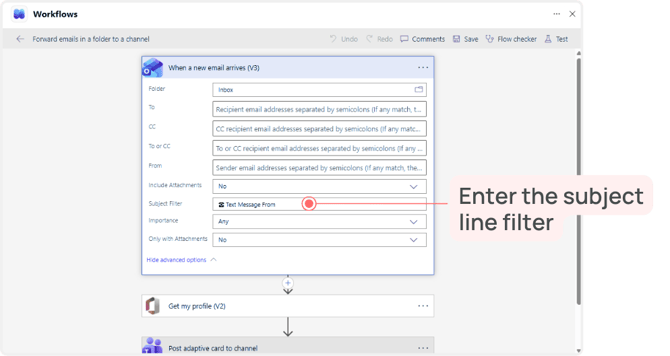
This ensures that only emails generated by inbound text messages are sent to your Teams channel.
⚠️ Important Reminder: If you do not add a subject line filter (Step 6), every email received in your inbox will be posted to your Teams channel.
To ensure only text messages are included:
- Go to Manage Workflows (from the Workflows app)
- Select the workflow you created
- In the trigger section (“When a new email arrives”), click Show advanced options
- In the Subject Filter field, enter:
☎ Text Message From - Click Save
How do I test the integration?
- Send a text message to your text-enabled business number from a mobile phone
- Confirm the message arrives in your email inbox
- Verify that the message is automatically posted in your selected Teams channel
Where can I manage or edit my workflow?
You can access and manage workflows from:
- The Workflows app in Teams
- The Manage Workflows section
- The confirmation screen after setup
From there, you can edit, disable, or delete workflows at any time.
What will the message look like in Teams?
Each inbound text message will appear as a post in your selected Teams channel, typically including:
- The sender’s phone number
- The message content
- A timestamp
Can I customize this workflow further?
Yes. You can modify the workflow to:
- Route messages to different channels
- Apply additional filters
- Trigger other actions based on incoming texts
Important notes
- This setup is for inbound message visibility only (texts → email → Teams)
- Replies to messages must still be sent from your Email to Text inbox
- Make sure your email inbox is properly receiving text messages before configuring the workflow