
Overview
Email to Text integrates seamlessly with HubSpot by treating text messages like emails. This allows your team to send, receive, and log SMS conversations directly within your CRM—no separate integration required.
How does Email to Text work with HubSpot?
Email to Text converts text messages into emails, which HubSpot can automatically track and log on contact records.
- Outbound: Send a text from HubSpot by emailing a contact’s mobile number
- Inbound: Replies are delivered to your inbox and logged in HubSpot
- Conversations are tracked as part of the contact’s activity history
As shown in your guide, text messages are handled just like standard emails, making them easy to sync with HubSpot workflows and records .
How do I set this up in HubSpot?
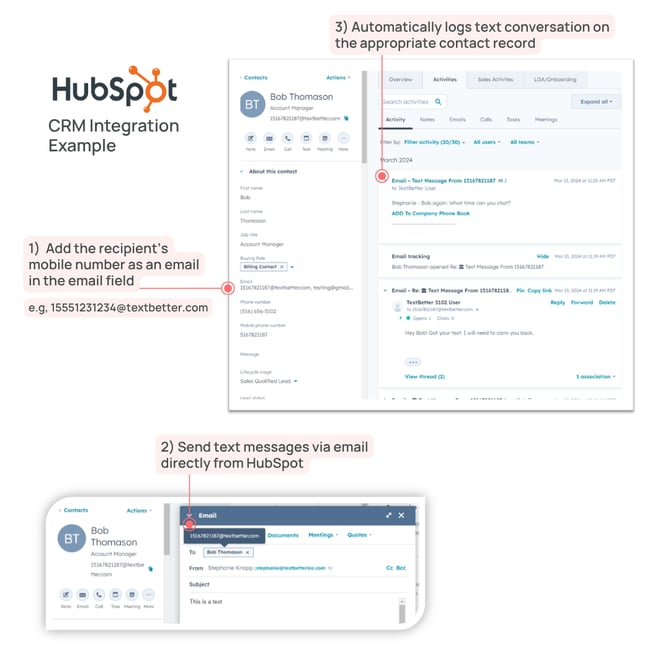
To get started, simply add the recipient’s mobile number as an email using the TextBetter format: [11-digit-number]@textbetter.com
Example:
15165551234@textbetter.com
Once done:
- You can send text messages via email directly from HubSpot
- HubSpot automatically logs text conversation on the appropriate contact record
Why is adding the mobile number as an email important?
HubSpot identifies contacts based on email addresses. Since text messages are delivered as emails (e.g., 15165551234@textbetter.com), adding this as an email ensures:
- Messages are logged to the correct contact
- No duplicate records are created
- Full conversation history stays in one place
What is the HubSpot Sales Extension, and should I use it?
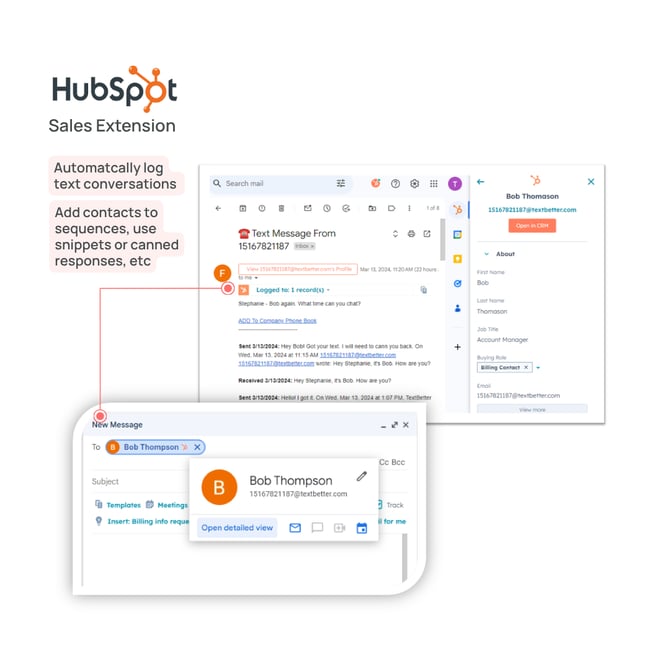
The HubSpot Sales Extension allows you to track and log emails (including text messages) from your inbox directly into HubSpot.
It works with:
- Gmail
- Microsoft Outlook / Microsoft 365
It also enables:
- Email tracking and logging
- Adding contacts to sequences
- Using templates and snippets
💡 Pro Tip on HubSpot Sales Extension Settings
HubSpot Sales Extension settings and requirements may vary depending on the email client you use. Be sure to follow the instructions specific to your setup.
Important: How do I prevent duplicate contacts?
⚠️ Important: If a contact’s mobile number '@textbetter.com' is not added as a primary or secondary email, HubSpot may create a new contact record when a text message is received.
Example:
- Existing contact: Jane@abc.com
- Incoming text appears from: 15165551234@textbetter.com
If that secondary email is not already on the record, HubSpot may create a duplicate contact.
Best practice:
- Configure your HubSpot Sales Extension to avoid auto-creating new contacts
Can I send text messages directly from HubSpot?
Yes. Once set up:
- Compose an email in HubSpot
- Send it to the contact’s @textbetter.com email address
- The message will be delivered as a text
Will text conversations be logged automatically?
Yes. When configured correctly:
- All inbound and outbound messages are logged
- Conversations appear in the contact’s activity timeline
- Your team has full visibility into communication history
💡 Managing Contact Email Logging Rules
HubSpot contact email logging rules let Super Admins control which incoming and outgoing emails are logged to the CRM for connected inboxes. These settings help ensure relevant team communications are captured while allowing specific email addresses or domains to be excluded through the never log list.
-
Log replies only: replies log only if they are part of an existing thread logged in the CRM. Incoming messages not associated with a logged thread will not be logged.
-
Log all emails (from known contacts): log all emails to and from existing contacts for users with connected personal inboxes. This is the default logging option for all accounts. This includes:
-
Emails sent from outside of the CRM (e.g., an email client or mobile app) to existing contact records log to the CRM.
-
All emails from existing contacts to users log to the CRM.
-
Emails sent outside of HubSpot to recipients who are not contacts, do not log.
-
-
Create new contacts from logged emails (BETA): in addition to logging all emails for known contacts, this option creates new contacts from incoming emails to connected personal inboxes if they don’t exist in your CRM.
→Manage contact email logging rules (Super Admins Only)
Can I use HubSpot features with text messages?
Yes. Since texts are handled like emails, you can use:
- Sequences
- Templates / snippets
- Activity tracking
- CRM reporting
Best practices
- Always store mobile numbers as primary or secondary email fields
- Use the HubSpot Sales Extension for consistent logging
- Periodically review contacts for duplicates
- Train your team on the email-to-text format